Step 1: Back-up Email Accounts before a domain transfer.
Note: If you are transferring from a cPanel based provider, send a mail to support@icecreamdigital.co.za and we will investigate a possible server-side migration for you.
If you do not meet the above indication, the steps are as follows (*Use at your own discretion):
1.1.) Open Outlook
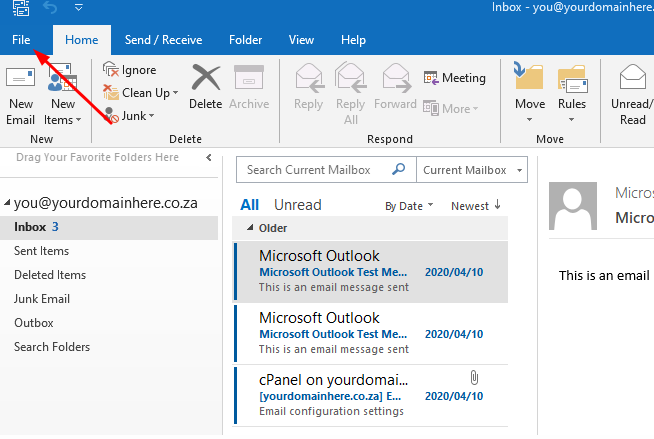
1.2) Click on the File tab:
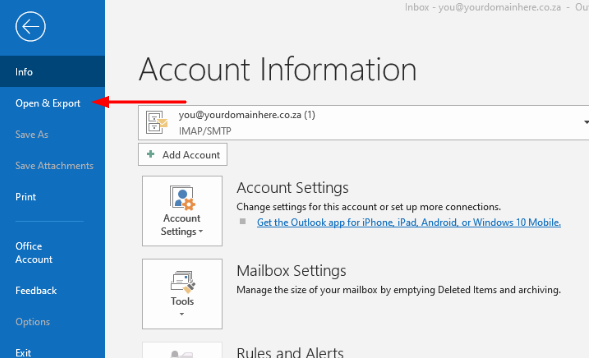
1.3) Select “Open & Export”
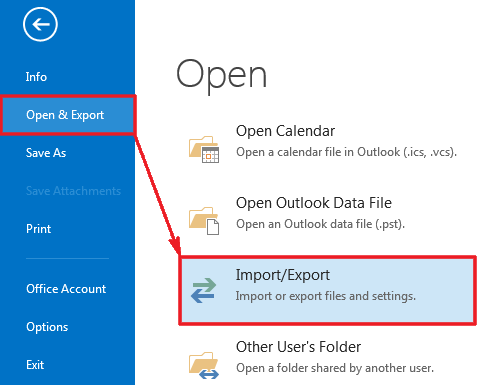
1.4.) Click on “Import/Export”
1.5.) Now select ” Export to a file”
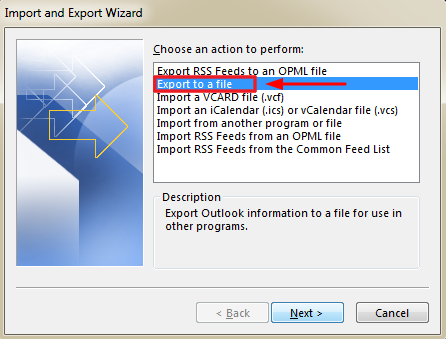
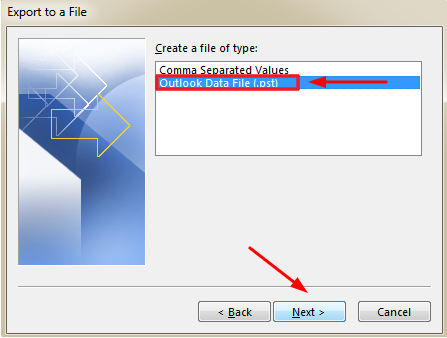
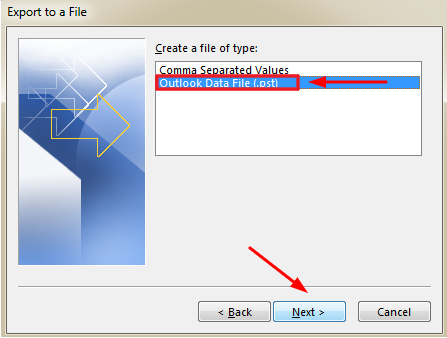
1.6.) Choose “Outlook Data File” and select “Next”
Step 2: Edit mail configuration settings
2.1.) Open Outlook
– Click on “File”
– Select “Account Settings”
– From the Dropdown list choose “Manage profiles”
– Select “Email Accounts”
– Click on the email address in question
– Select “Repair”
– Lastly “Manual setup and additional server types”
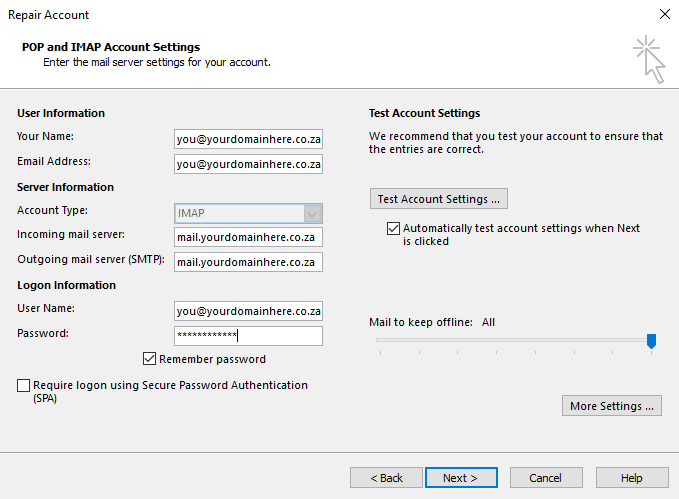
2.2.) Adjust your settings as follow:
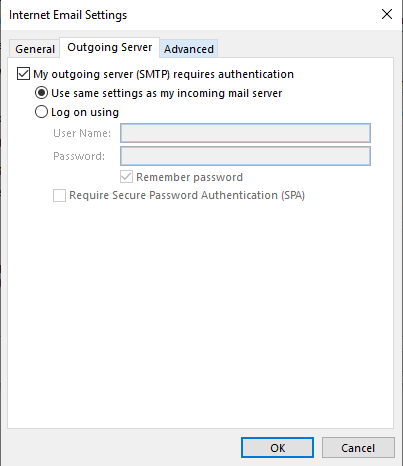
2.3.) Click on “More Settings” – Outgoing Server tab
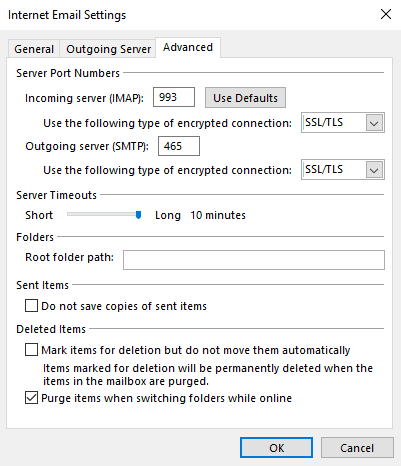
2.4.) Click on “More Settings” – Advance server tab
Step 3: Import mail
Import PST.
3.1.) Open Outlook
3.2) Click on the File tab:
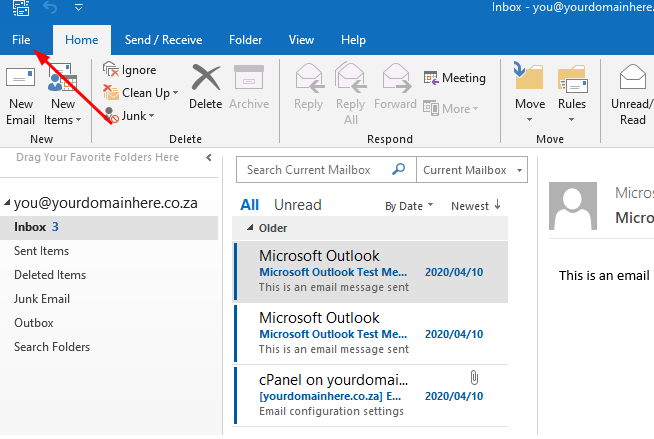
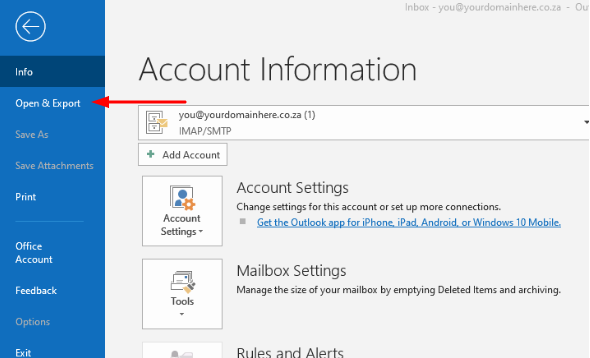
3.3) Select “Open & Export”
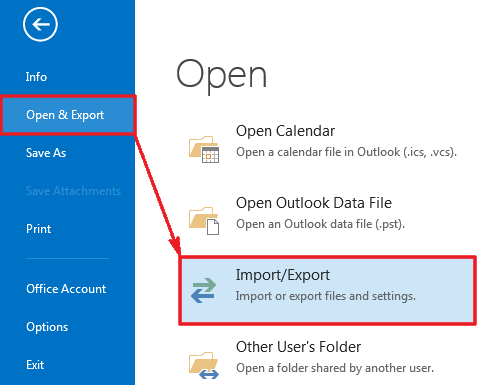
3.4.) Click on “Import/Export”
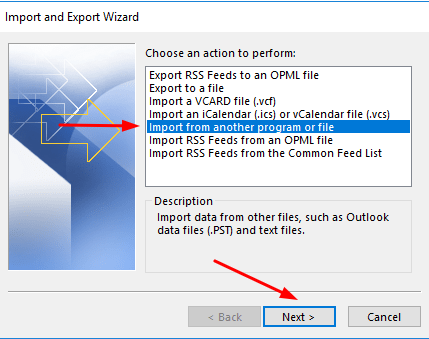
3.5.) Choose the option “Import from another program or file”
3.6.) Select the file type “Outlook Data File (PST)”
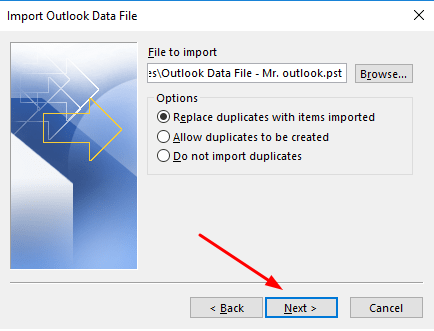
3.7.) Locate the file to import by selecting “browse” as well as select “Replace duplicates with items imported”
3.8.) Select entire Outlook Data File, click “Import items into the same folder” and lastly specify your domain name” e.g xxxxx @yourdomainhere.co.za
